 Multiple Faces Detected


 October 4th, 2024
Before we dive into the steps, let’s first understand why it’s important to make your Facebook profile private. By default, your Facebook profile is set to public, which means anyone can see your posts, photos, and personal information. This can leave you vulnerable to online scams, identity theft, and unwanted attention from strangers. Making your profile private allows you to control who can see your content and limits the amount of personal information that is available to the public.
Step 1: Access Your Privacy Settings
The first step to making your Facebook profile private is to access your privacy settings. To do this, click on the down arrow in the top right corner of your Facebook homepage and select “Settings & Privacy” from the dropdown menu. Then, click on “Privacy Shortcuts.”
Step 2: Adjust Your Privacy Settings
Once you’re in the Privacy Shortcuts menu, you’ll see a section called “Your Activity.” Here, you can adjust who can see your future posts, who can see your friends list, and who can look you up using your email or phone number. We recommend setting these options to “Friends” or “Only Me” to limit the visibility of your profile.
Next, click on “Timeline and Tagging” in the left menu. Here, you can control who can post on your timeline, who can see posts you’re tagged in, and who can see posts on your timeline. We suggest setting these options to “Friends” or “Only Me” as well.
Step 3: Review Your Profile and Timeline
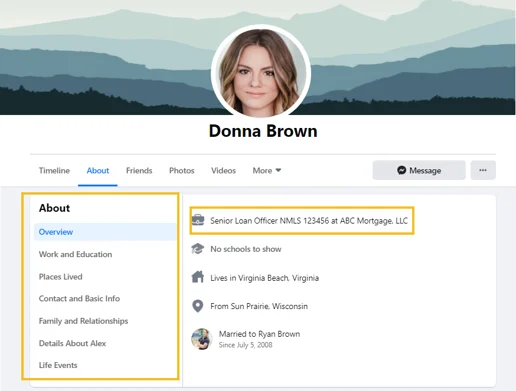
After adjusting your privacy settings, it’s a good idea to review your profile and timeline to make sure there isn’t any personal information that you don’t want to be public. This includes your profile picture, cover photo, and any posts or photos that you’ve shared. You can easily delete or hide any content that you don’t want to be visible to the public.
Additional Tips for Managing Your Privacy on Facebook
Aside from making your profile private, there are a few other things you can do to manage your privacy on Facebook:
- Be cautious about accepting friend requests from people you don’t know.
- Regularly review and update your privacy settings.
- Limit the amount of personal information you share on your profile.
- Use a strong and unique password for your Facebook account.
- Enable two-factor authentication for added security.
By following these tips and making your Facebook profile private, you can have more control over your online presence and protect your personal information from being accessed by strangers.
Social Catfish
One helpful tool for dealing with a compromised Facebook account is Social Catfish’s search specialist feature. Our search specialist can help you find any information associated with your account, such as email addresses, phone numbers, and usernames that may be compromised. To get started, click here to contact our search specialist.
Conclusion
In today’s digital world, it’s important to be mindful of your online privacy. By making your Facebook profile private and regularly reviewing your privacy settings, you can have peace of mind knowing that your personal information is secure. We hope this blog post has been informative and helpful in guiding you through the steps to make your Facebook profile private. Stay safe and happy browsing!