

 Multiple Faces Detected


 April 4th, 2022
People used to believe that pictures couldn’t lie. However, thanks to today’s sophisticated photo editing tools, you can make an image that depicts whatever you want — for better or worse. Photoshop and other software can change everything from shapes and colors to the overall image composition. The practice has become so common that “photoshop” is now a verb!
Wondering if a photo you’ve seen online is legit? As Photoshop and similar tools have gotten more powerful, it’s increasingly difficult to detect changes. Thankfully, you can still do so in many cases. So whether you’re suspicious of an image or want to separate the authentic content from misinformation read on to learn how to tell if a picture is photoshopped.
1. The Fastest Way To Spot a Photoshopped image
For people who really want to know if an image is photoshopped, there’s a new way of telling. And best of all it’s fast and easy. With this method, you can see for certain. And even better, this method can be done with a tool. This tool is called a reverse image search. If the original image was taken from somewhere online, once you run a reverse image search with socialcatfish.com you will see the original photo that the person used to create the photoshopped version. Use the search bar below to run your first image search today!
There are other ways of deducing if a photo is photoshopped. These not-so-fast and not-so-easy ways can still be effective. So, let’s jump right into it!
2. Look For Distortions Around Elements of the Image
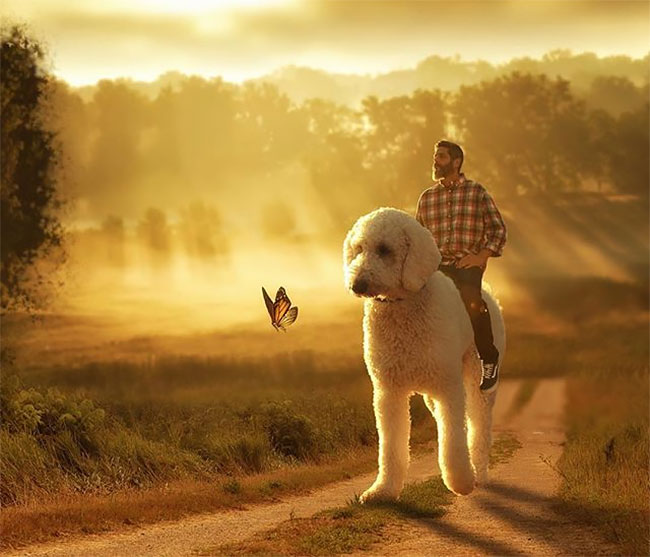
Photoshop has made it easy to create “composites.” These are images spliced together from several different photos. For example, someone may cut out someone’s body and place it on a different background, or superimpose a different object into their hands. Many gossip tabloids do this to create falsified images of celebrities.
To detect these sorts of changes, it helps to know how they’re doing. First, photo editors can “mask” an image by essentially clipping out the parts they don’t want. Then, it’s just a matter of layering another image below the mask.
However, this technique can be difficult to do, so you can often see distortion where the images were cut together. Look for blurriness or pixelation that indicates a discrepancy in image resolution. Differences in lighting and saturation are also tell-tale signs. Sometimes, you’ll see a thicker border or wiggles where the editor attempted to clean up the mask.
3. The Lighting and Shadows Don’t Match Up

In a natural photo, the subject and their environment share the same lighting. The subject may be a bit more illuminated, but you can see that the overall hue, intensity, and direction of the lighting are the same.
That’s rarely the case in composite photos. Unless all images were shot with the same type of lighting, you’ll see differences in shadows, dimness or brightness, and focus.
Look for people or objects that appear much brighter or dimmer than their surroundings. See if they cast the correct shadows. For example, if the person is illuminated from the front but the background has shadows to the left, that’s a sign that the background was lit differently.
Each layer’s brightness and luminance can be adjusted separately in Photoshop. A skilled editor can often get them very close. Still, if you’re suspicious of a photo, check the lighting.
4. Unexpected Shapes and Textures
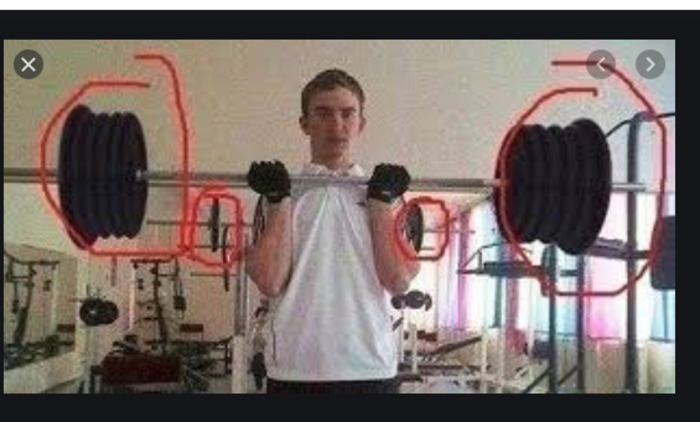
Not all altered photos are composites. Sometimes, images are edited out of the photo, or the overall shape is changed.
One common sign of this sort of photoshopping is an unnaturally smooth image. You can definitely see this in some photos where people’s faces lack pores, hairs, and other natural details. Check their hands, clothing, and other features as well.
For example, if someone erased a slogan from someone’s T-shirt, you may see unnatural-looking fabric. Look for places where you’d see normal fabric draping or textures. If the image is overly smooth or flat, that could be a sign of photoshopping.
That principle is true for all sorts of textures. Most things in our lives are not perfectly smooth nor evenly lit. However, it’s difficult to erase information from a photograph (or alter it) while preserving those natural shapes. So, check all aspects of the image for flat or “varnished” looking areas.
More advanced photo editors use clone-stamping. This is when you copy one part of the image and progressively duplicate it in other areas. It’s a better way to change body shapes or edit objects in the photo, but it’s still not perfect. Clone-stamping may leave unnatural patterns or overlapping lines. Look very closely to see if the tone, texture, and shadowing of skin, fabric, walls, etc. are consistent with no blurry or wiggly areas.
5. The EXIF and Geolocation Data are Inconsistent

Every photo stores what’s called metadata — all the details about how, when, and with what settings the photo was taken. Sometimes, this includes geolocation information as well. If something doesn’t add up, that’s a sign you’re looking at a doctored image.
For example, the EXIF data may say a photo was taken with a low aperture, which generally means the background should be blurry. If that’s the case but the background is in crisp focus, it was probably edited in.
Check the ISO and shutter speed as well. ISO refers to the camera’s light sensitivity. To shoot in low-light conditions, the ISO must be higher but so must the shutter speed. Otherwise, the image would appear grainy or blurry.
That said, some composites won’t have the EXIF data because the images were combined into a new file. Still, if you can access the data, check for consistency.
Other Ways to Check
Of course, not everyone who photoshops an image is a sophisticated photo editor. There are countless apps and filters designed to alter images. These are particularly easy to identify if you know where to look.
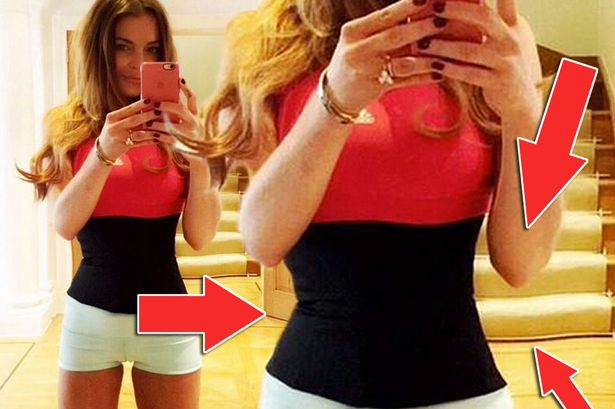
For example, someone may make themselves appear younger or slimmer with a filter. These apps often leave an “aura” around their bodies. Look for glowing borders and overly smooth lines. A natural portrait will have stray hairs and fibers around the edges of the person’s body.
Slimming filters often modify the background of the image as well. You may see curved or distorted walls or floors behind the person’s image.
Finally, if all else fails, run a reverse image search on Socialcatfish.com. The algorithm will not only find other copies of the photo, if applicable but also visually similar images. You may be able to find the source images that were used in the composite.
Plus, reverse image search is helpful in any situation where an image may be faked. Even if a photo is not photoshopped, you should always make sure it’s depicting what it claims to depict. Both catfishers and fake-news outlets will use photos they find online to represent themselves or certain events.
Wrapping Up
In the digital era, it’s vital to stay safe and informed. Knowing how to detect fake and altered photos is a critical skill. As good as today’s photo-editing technology is, there is usually a way to determine if a photo has been altered. In addition to the techniques above, use common sense. If a photo looks unnatural or depicts something that defies logic, it’s probably photoshopped. In any case, check for an image’s consistency across all characteristics, and you can usually sniff out a doctored photo from a legitimate one.