
 Multiple Faces Detected


 June 5th, 2026
Google search by image is the first tool most people reach for when they want to verify a photo, and for good reason. It is free, fast, and widely accessible. But if you are trying to find out who someone really is online, Google image search has real limitations that matter. It matches image files, not faces. It searches only what Google has indexed, which excludes most dating apps, adult platforms, and private social media. And a photo that has been cropped, filtered, or re-uploaded from a different source may return no results at all, even if the face in it appears across dozens of other platforms.
This guide covers how to use Google search by image correctly on desktop and iPhone, what the results actually show, and most importantly, why Google image search alone is not enough to catch a catfish or verify someone’s real identity online. For searches where Google comes up empty or returns incomplete results, Social Catfish’s reverse image search uses AI facial recognition to find where a face appears across social media, dating apps, and platforms Google does not index, returning the full identity behind the photo rather than just file matches.
What Is Google Search by Image?
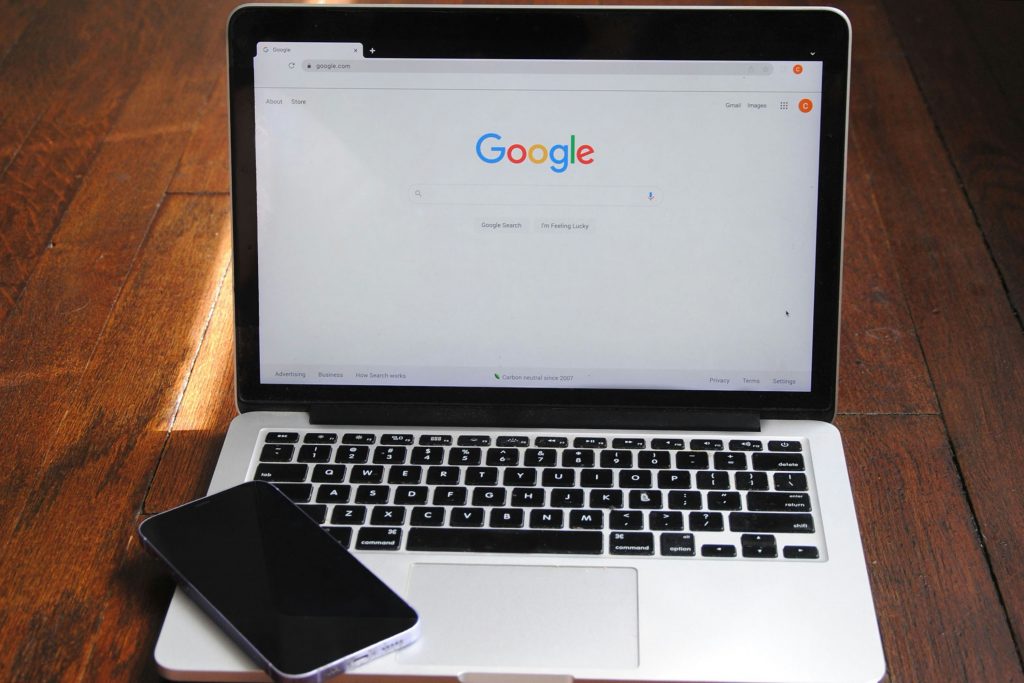
Google search by image, also called Google reverse image search, is a feature that lets you upload a photo or paste an image URL and search Google’s index for matching or visually similar images. It was introduced in 2011 and is accessible through images.google.com.
The technology works primarily through image file matching and visual similarity algorithms. When you upload a photo, Google looks for other images in its index that are identical, near-identical, or visually similar to the one you submitted. It also attempts to identify the content of the image objects, locations, and artworks, and return relevant information about what is depicted.
For reverse image search on photos of people, Google searches the images it has indexed across the public web. If the person’s photo has been posted on any publicly accessible page that Google’s crawler has visited, it may surface that page in the results.
How to Google Search by Image on Desktop
There are two ways to run a Google search by image on desktop.
Method 1 — Upload directly from your device: Go to images.google.com. Click the camera icon in the search bar. Select “Upload a file” and choose the photo from your device. Google processes the image and returns results.
Method 2 — Paste an image URL: Right-click on any image on a website and select “Copy image address.” Go to images.google.com, click the camera icon, select “Paste image link,” and paste the URL. This method works without downloading the image first.
Method 3 — Search directly from any image on Chrome: In Google Chrome on desktop, right-click any image on a webpage and select “Search image with Google.” This runs the reverse image search without opening images.google.com separately.
How do you Google search by image for the best results? Use the highest resolution version of the photo available. Crop the image tightly to the face before uploading; removing background elements helps Google focus on the relevant content. Try both the full photo and a cropped version if the first search returns limited results.
How to Search by Image on Google on iPhone
How to search by image on Google on iPhone is slightly different from desktop; the mobile browser does not always show the camera icon by default.
Method 1 — Google app: Open the Google app on your iPhone. Tap the camera icon in the search bar at the top of the screen. Select “Search with an image” and choose to upload from your photo library or take a new photo. Google Lens, Google’s mobile visual search tool, runs the search and returns results.
Method 2 — Safari desktop mode: Open Safari on your iPhone and go to images.google.com. Tap the share button and select “Request Desktop Site.” The desktop version loads, and the camera icon appears in the search bar. From here, the process is identical to desktop upload or pasting a URL.
How to search Google by image on iPhone using Google Lens: Open the Google app and tap the Lens icon, the small square with a dot in the centre rather than the camera icon. Lens runs a more advanced visual search that identifies objects, text, and faces more precisely than standard image search. For photos of people, Lens often returns more relevant results than standard reverse image search.
How to Search in Google by Image: What the Results Actually Show
Understanding what Google image search results mean is important for interpreting them correctly.
Exact and near-identical matches. When Google finds the same image file or very close copies, it returns the pages where those files appear. This is the most useful result for reverse image search; it tells you where a specific photo has been posted online.
Visually similar images. Google also returns images that look similar but are not the same file. For people searches, this sometimes surfaces other photos of the same person, but it can also return completely unrelated images that share visual characteristics like lighting, composition, or colour.
Related pages. Google may return pages it associates with the image based on surrounding text and context rather than visual matching. These results vary in reliability.
What how to search in Google by image does not show:
- Results from platforms that block Google’s crawler — most dating apps, many social networks, and adult content platforms are not indexed
- Results from private or restricted social media profiles
- Matches where the photo has been cropped, filtered, mirrored, or re-uploaded — these are different enough in file terms that Google may not match them
- AI-generated faces — these have never been posted anywhere and return no results by definition
Why Google Search by Image Is Not Enough to Catch a Catfish
This is the critical limitation that matters most for identity verification. Google image search is a file-matching tool built for general web search. It was not designed to catch fake profiles, verify identities, or search the platforms where catfishing actually happens.
It does not search dating apps. Tinder, Bumble, Hinge, Grindr, and every other major dating platform block Google’s crawler. Photos used in fake dating profiles are completely invisible to Google image search, which is exactly the scenario where reverse image search is most needed.
It does not search most social media. Instagram, Facebook, and Snapchat limit what Google can index. Private accounts and restricted profiles, the accounts most likely to be used for catfishing, are inaccessible to Google’s crawler entirely.
It matches files, not faces. A catfisher never uses the same image file as the original. They download a photo, re-upload it, crop it, apply a filter, or screenshot it from a video. Each of these changes makes the file different enough that Google may not match it even though the face is identical.
It cannot search adult platforms. Many catfish and fake profiles use photos stolen from adult content platforms that are not indexed by Google at all.
It returns no results for AI-generated photos. AI-generated faces have never been posted anywhere; they are created fresh for each fake account. Google image search returns nothing because there is nothing to match. But the absence of results in Google does not mean the photo is real; it may mean it was generated specifically to avoid detection.
How to Reverse Image Search People Beyond Google

For identity verification where file-matching is not sufficient, facial recognition-based reverse image search is more effective. These tools analyse the face itself rather than the image file, finding the same person across different photos regardless of cropping, filtering, or re-uploading.
Social Catfish reverse image search. Upload the photo to Social Catfish’s reverse image search. The AI facial recognition scans across social media platforms, dating apps, adult content sites, and public websites that Google does not index. It finds where that face appears in completely different photos, different angles, different lighting, different years, and returns the identity associated with it. If the photo is stolen from a real person, it identifies who that person is. If it is AI-generated, it returns no results across a significantly wider search than Google alone, making the absence of results more meaningful.
PimEyes. A dedicated facial recognition search engine that scans the public web for appearances of a face across different photos. Stronger than Google for face-based matching but returns image locations rather than identity data, useful as a supplementary check alongside Social Catfish.
Yandex Images. The Russian search engine has strong reverse image search coverage for Eastern European social networks and platforms that Google does not index as thoroughly. Particularly useful when a photo may originate from Eastern European sources.
TinEye. Specialises in finding the source of an image and tracking where it has spread. Useful for determining when a photo first appeared online and whether it predates the account using it.
Running the same photo through Social Catfish, Google, and at least one of these supplementary tools gives you the broadest possible coverage before concluding that a photo is genuine.
How to Find Out Who Someone Really Is Online
Finding a photo match is useful. Finding the person behind it is what actually matters for identity verification. This is where Social Catfish goes further than any image search tool.
Social Catfish’s reverse image search does not just find where a face appears; it returns the identity behind it. When a match is found, the search surfaces the real name, linked social media accounts, dating profiles, phone numbers, email addresses, and public records associated with that identity. This is the difference between knowing a photo was stolen from someone’s Instagram and knowing who that person is, what other accounts are linked to the fake profile using their photos, and what contact details are associated with the account that contacted you.
For verifying someone you met online before developing feelings, sharing personal information, or meeting in person, this identity layer is what Google image search cannot provide. A photo appearing nowhere on Google does not mean the person is genuine; it may mean their photos were specifically chosen because they do not appear in Google’s index. Social Catfish’s broader search gives you a much stronger basis for that conclusion.
FAQ
Go to images.google.com, click the camera icon in the search bar, and either upload a photo from your device or paste an image URL. On iPhone, use the Google app and tap the camera or Lens icon to run a visual search.
Open the Google app and tap the camera icon in the search bar. Select an image from your photo library or take a new photo. Alternatively, go to images.google.com in Safari, request the desktop site, and use the camera icon to upload directly.
The most common reasons are that the photo has been cropped, filtered, or re-uploaded, making it a different file, the photo is from a platform Google does not index, or the face is AI-generated and has never appeared online before. No results in Google confirm the photo is genuine. Use Social Catfish’s facial recognition search for a more comprehensive check.
Google matches image files across its public web index. Social Catfish uses AI facial recognition to find the same face across different photos on platforms Google does not index, including dating apps, adult sites, and private social networks- and returns the real identity behind the face rather than just image locations.
Image search is a strong starting point, but not sufficient on its own. A comprehensive identity verification combines reverse image search with username search, reverse phone lookup, and reverse email search, all of which Social Catfish supports in a single platform.
Conclusion
Google search by image is free, fast, and a sensible first step for verifying a photo. But it is built for file matching across an indexed web, not for catching catfishers who use photos from dating apps, private social media, or AI generation tools that Google never sees.
For identity verification that actually catches fake profiles, the reverse image search needs to go further: use facial recognition rather than file matching, cover platforms Google does not index, and add an identity layer that returns the real person behind the face rather than just where a file has been posted. Social Catfish’s reverse image search covers all three, making it the reliable step that comes after Google comes up short.