
 Multiple Faces Detected


 September 22nd, 2023
In today’s interconnected world, our smartphones serve as central hubs for communication and information. With the convenience of constant connectivity, it’s imperative to have control over who can reach us. One of the most effective tools at our disposal is the ability to blacklist unwanted phone numbers. Whether it’s persistent telemarketers, spam messages, or even personal contacts that you need a break from, the power to blacklist a phone number empowers you to curate a tailored communication experience. In this blog post, “Using Built-in Phone Features: A Step-by-Step Guide on How to Blacklist a Phone Number,” we embark on a journey to demystify the process of blocking unwanted contacts on your smartphone. From preserving your peace of mind to regaining control over your communication channels, this guide provides you with the comprehensive steps to effectively and effortlessly blacklist phone numbers. Get ready to reclaim your digital space and master the art of managing your contact list with precision and confidence.
Understanding the Need for Blacklisting
Having control over who can reach us is more important than ever. The concept of blacklisting phone numbers has evolved from a mere feature to a powerful tool that enables us to shape our communication landscape according to our preferences and needs. Understanding the need for blacklisting goes beyond just managing contacts; it’s about regaining ownership of our digital interactions and safeguarding our peace of mind.
One of the primary motivations behind blacklisting phone numbers is to fend off unwanted and persistent telemarketers. These calls can disrupt our daily routines, invade our personal space, and even lead to potential scams. By blacklisting these numbers, we establish a barrier that shields us from these unsolicited and often bothersome interactions.
In the age of digital communication, spam messages have become equally invasive. Whether it’s unsolicited promotional texts or fraudulent links, these messages can clutter our inbox and compromise our online security. Blacklisting provides a way to filter out such messages and ensure that our messages are from trusted sources, reducing the risk of falling victim to scams or phishing attempts.
On a personal level, blacklisting offers a means to establish boundaries with certain contacts. There might be situations where we need a break from certain interactions without permanently severing ties. Whether it’s a friend going through a challenging phase or an acquaintance who tends to overwhelm us with messages, blacklisting allows us to create a temporary hiatus while maintaining the option to reconnect later.
In a professional context, maintaining a clear line between work and personal life is essential. Blacklisting enables us to compartmentalize our interactions and stay focused during work hours, ensuring that personal contacts don’t interrupt important tasks or meetings. This separation contributes to increased productivity and a healthier work-life balance.
Moreover, blacklisting phone numbers is a way to reclaim our mental and emotional space. With constant notifications and alerts, our phones can become sources of stress and anxiety. Blacklisting minimizes disruptions, allowing us to engage with our devices on our own terms and reducing the toll that unnecessary communication can take on our well-being.
Navigating Phone Settings
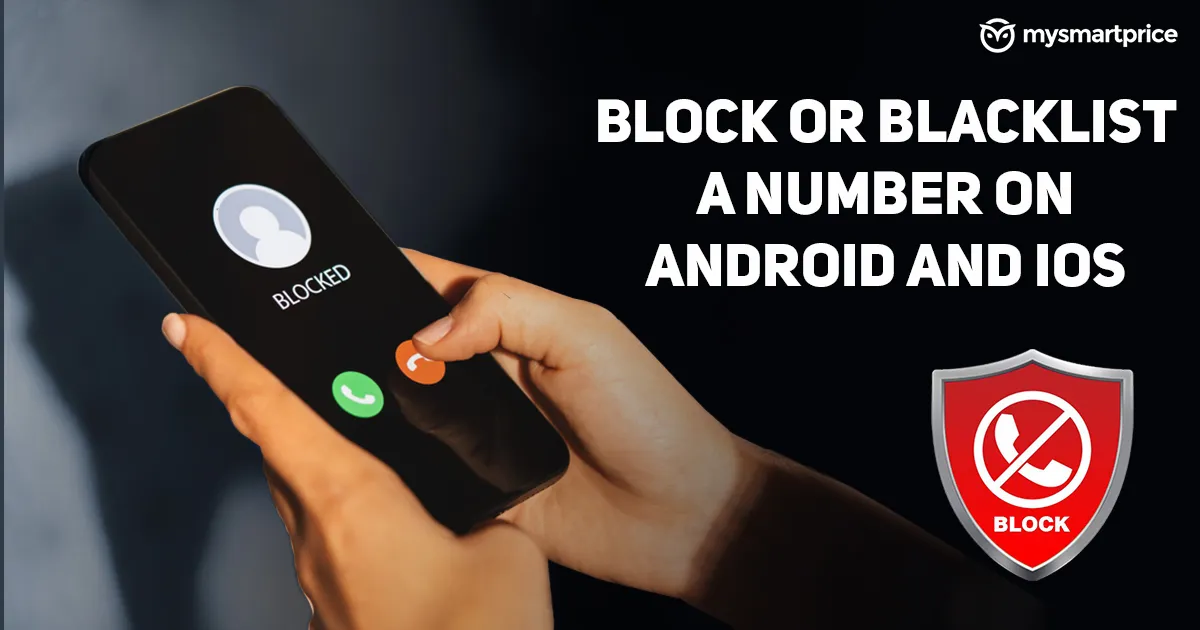
Navigating the phone settings to blacklist a phone number is a foundational skill that empowers you to take control of your communication experience. Whether you’re using an Android or iOS device, the process typically involves accessing specific settings tailored to your platform. By mastering this skill, you’re equipped to manage your contacts and filter out unwanted interactions effortlessly.
For Android users, the journey begins by opening the Phone app. From there, locate the “Recents” tab, which displays your call history. Tap on the specific number you want to blacklist and select the “Details” option. This opens a menu with various options, including the ability to block the contact. Confirm your choice, and the number will be added to your blocked list, ensuring that future calls and messages from that contact are intercepted.
On iOS devices, the process is equally straightforward. Open the “Phone” app and navigate to your recent calls by selecting the “Recents” tab at the bottom of the screen. Locate the contact you want to block and tap the “i” icon next to their name. Scroll down to find the “Block this Caller” option, and once confirmed, the contact will be added to your blocked list, preventing further communication.
While the steps may differ slightly between Android and iOS, the objective remains consistent: to provide you with the tools to filter out unwanted interactions and maintain a curated contact list. This skill is not only useful for blocking telemarketers and spam messages but also for asserting your boundaries and safeguarding your digital space.
As the digital landscape continues to evolve, understanding how to navigate phone settings for blacklisting becomes an essential aspect of digital literacy. It empowers you to take charge of your communication experience, allowing you to focus on the contacts that matter most while effectively managing those that may detract from your peace of mind. By mastering this skill, you’re fostering a healthier relationship with your device and creating a customized communication environment that aligns with your preferences and needs.
Step-by-Step Guide: Blocking a Phone Number
Here’s a step-by-step guide on how to block a phone number on both Android and iOS devices:
Blocking a Phone Number on Android:
- Open Phone App: Launch the Phone app on your Android device. This app typically has an icon resembling a phone receiver.
- Access Call History: Navigate to the “Recents” or “Call History” tab. This section displays your recent calls.
- Select Number: Find the number you want to block from the list of recent calls. Tap on the number to view more details.
- Open Details: In the call details screen, you’ll see options like “Call back,” “Message,” and “Details.” Tap on “Details” to access more options.
- Block Number: Depending on your device and Android version, you might find an option to “Block/report spam” or “Block number.” Tap on this option and confirm your decision to block the number.
- Confirmation: After confirming, the contact will be added to your blocked list, preventing calls and messages from that number.
Blocking a Phone Number on iOS:
- Launch Phone App: Open the Phone app on your iOS device. This app is represented by a green icon with a white phone receiver.
- Navigate to Recents: Tap on the “Recents” tab located at the bottom of the screen. This displays your recent call history.
- Select Number: Scroll through your call history and find the number you want to block. Tap the “i” icon next to the number to access more options.
- Block This Caller: On the contact details page, you’ll find the “Block this Caller” option. Tap on it.
- Confirmation: A pop-up will appear asking if you want to block the contact. Confirm your decision to block the number.
- Blocked Contacts: Once confirmed, the contact will be added to your blocked list, preventing calls and messages from that number.
Managing and Unblocking Contacts
Managing and unblocking contacts is an essential skill that allows you to maintain control over your communication channels while also offering the flexibility to reconsider your decisions. Once you’ve blacklisted a phone number, it’s important to understand how to review and manage your blocked list, as well as how to unblock contacts if circumstances change.
Reviewing Blocked Contacts:
- Access Phone Settings: On both Android and iOS devices, start by accessing your phone’s settings.
- Navigate to Call Settings: Within the settings, find the section related to call settings or blocked numbers. This might vary slightly depending on your device and version.
- View Blocked Contacts: In the call settings or blocked numbers section, you’ll see a list of contacts you’ve blocked. This list provides an overview of the numbers you’ve chosen to restrict.
Unblocking Contacts:
- Locate Blocked Number: Within the list of blocked contacts, locate the number you want to unblock. It will be displayed with its associated details.
- Unblock Number: On Android devices, there might be an “Unblock” or “Remove from block list” option next to the contact. Tap on this option to unblock the contact.
- Confirm: Depending on your device, you might need to confirm your decision to unblock the number. This step is in place to prevent accidental unblocking.
- Reconnect: Once the contact is unblocked, you’ll be able to receive calls and messages from them as usual. Keep in mind that any messages or calls they attempted to make during the blocking period might still be unavailable.
Considerations:
- Reassessing Your Choices: Regularly review your blocked list to ensure it aligns with your current needs. People change, circumstances shift, and you might want to re-establish contact with individuals you previously blocked.
- Setting Boundaries: While unblocking contacts is an option, remember that it’s important to maintain your boundaries. If you decide to unblock someone, consider setting clear communication expectations to avoid the issues that led to blocking in the first place.
- Privacy and Safety: Always prioritize your safety and privacy. If you’ve blocked someone due to safety concerns, consider reaching out to relevant authorities or professionals before deciding to unblock.