

 Multiple Faces Detected



 April 10th, 2026
You know who you want to buy from, maybe a seller you have used before, someone a friend recommended, or a specific store you found in a listing. The question is how to get back to them without scrolling through endless search results, hoping their name comes up.
eBay has several ways to search for a seller directly, and most buyers never use anything beyond the basic search bar. This guide covers every method available from eBay’s Advanced Search tool to direct profile URLs and what to check once you find the seller to make sure they are legitimate before you hand over any money.
If you want to verify a seller’s identity beyond what eBay’s profile shows, Social Catfish’s reverse search cross-references a username, email, or phone number against public records and other platforms, useful for any high-value purchase where a feedback score alone is not enough reassurance.
How to Search Seller in eBay Using Advanced Search
Fill in what you see on the seller’s eBay profile. The risk score updates in real time as you go.
eBay’s Advanced Search is the primary built-in tool for finding a specific seller’s listings. It lets you filter all of eBay’s active listings down to a single seller by username.
How to access Advanced Search
- Go to ebay.com and look for the Advanced link immediately to the right of the main search bar at the top of the page
- Click it, or go directly to ebay.com/sch/ebayadvsearch
- You can also access the seller-specific view directly at ebay.com/sch/ebayadvsearch?_sofindtype=0&_byseller=1#byseller
How to search by seller username
- On the Advanced Search page, scroll down to the Sellers section
- Check the box next to Only show items from
- Select Specific sellers and enter the seller’s exact eBay username in the text field
- Click Search
eBay returns all active listings from that seller. You can combine this with a keyword, for example, entering “vintage camera” in the keyword field and a username in the seller field, which returns only that seller’s vintage camera listings.
Searching by username vs store name
These are two different things in eBay’s system. A seller’s username is their account ID, the name that appears next to their listings and feedback. Their store name may be different from the branded name they have chosen for their eBay shop.
Advanced Search’s seller field requires a username, not a store name. If you only have a store name, use the Stores search method described in the section below.
On mobile
eBay’s mobile app does not surface the full Advanced Search experience easily. The workaround is to open eBay in your mobile browser (not the app) and navigate to the Advanced Search URL, which works with a responsive layout. From inside the app, the quickest method is to tap the seller’s name directly from any of their listings to reach their profile.
How Do I Search eBay by Seller? — All Available Methods
Beyond Advanced Search, there are several other ways to find a seller depending on what information you have.
Direct profile URL
If you have the seller’s username, the fastest method is typing their profile URL directly into your browser:
- ebay.com/usr/username — replace “username” with their actual eBay username
- This takes you straight to their member profile page, which shows their feedback score, member since date, and a link to their active listings
Direct store URL
If the seller has an eBay Store, their store page is accessible at:
- ebay.com/str/username — replace “username” with their store username
- Store pages display their full inventory organised by their own categories, their store policies, and often a branded banner
Search bar shortcut
Typing seller:username directly into eBay’s main search bar returns that seller’s active listings without going through Advanced Search. This works on both desktop and mobile app.
Feedback Forum search
eBay’s Feedback Forum is a legacy method that some users find useful for locating a member when other methods come up short:
- Go to ebay.com/fdbk/feedback_profile/username replacing username with what you have
- This pulls up their full feedback history even if their store or profile URL has changed
From a listing you have already found
If you are already looking at one of their listings, click their username in the listing to go to their profile, then click Items for sale or See other items to view their full inventory. This is the fastest method when you have a specific listing in front of you.
eBay Seller Search by Store Name
Searching by store name is different from searching by username. Many eBay sellers operate branded stores with names that do not match their account usernames. A seller with the username “quicksales2019” might run a store called “Tech Outlet UK.”
How to search for an eBay store by name
- Go to Advanced Search at ebay.com/sch/ebayadvsearch
- On the left panel, click Stores under the Items section
- Enter the store name in the search field
- eBay returns matching stores you can browse directly
What store pages show vs regular profiles
A seller’s store page shows more than their basic profile:
- Full active inventory organised by the seller’s own categories
- Store policies including returns and shipping terms
- An About section with the seller’s description of their business
- Follower count and the option to save the seller
A basic profile page shows feedback history and a link to active listings but lacks the organised store layout and policies section.
When store search is most useful
Store name search is most useful when you only have a brand name from a receipt, a recommendation, or a business card without knowing the seller’s account username. Since store names and usernames are separate in eBay’s system, this method is often the only way to find them.
How to Search for a Seller on eBay Without a Username
If you do not have the seller’s exact username or store name, finding them takes a bit more investigative work.
Google site search
Google indexes eBay store and profile pages, which means you can use Google to search within eBay:
- Search site:ebay.com “seller description or business name” in Google
- Try variations — their real name, their business name, a product they are known for selling
- Results will surface eBay profile pages, store pages, and listings that contain the search terms
For example, searching site:ebay.com "Bristol Camera Shop" would surface any eBay pages mentioning that business name.
Keyword search combined with seller filters
If you remember specific items the seller listed, search for those items on eBay and narrow down from there:
- Search for a specific product description in the main search bar
- Use the Condition, Price, and Location filters to narrow results
- Look through sellers in the results for any whose username or store name matches what you remember
Searching from your purchase history
If you have bought from the seller before, their username is in your eBay purchase history:
- Go to My eBay → Purchase History
- Find any order from that seller
- Click their username to go directly to their profile
Cross-referencing contact details through Social Catfish
If the seller has communicated with you outside of eBay via email, phone, or another platform, and you want to find their eBay account or verify their identity, Social Catfish’s reverse search cross-references an email address, phone number, or username against public records and social platform data.
This is particularly useful when a seller asks you to transact outside of eBay, which is a red flag worth investigating before proceeding.
What to Check Once You Find the Seller
Finding a seller is only the first step. Before buying, particularly for high-value items, these are the things worth checking on their profile.
Feedback score and percentage
- Look for sellers with a positive feedback percentage of 99% or above
- The raw number matters too a seller with 50 feedback at 100% is less established than one with 2,000 feedback at 99.1%
- For high-value purchases, look for sellers with at least 200 completed transactions
Read the actual feedback comments
The percentage tells you how many buyers were satisfied. The comments tell you why buyers were not. Look specifically at:
- Negative and neutral feedback — read the actual text, not just the rating
- Patterns — a single complaint about slow shipping is normal; five complaints about items not matching descriptions is not
- Seller responses — how a seller responds to negative feedback reveals a lot about how they handle disputes
Member since date
A seller who joined last week, selling high-value items is a different risk profile from a seller with ten years of history. Check the member’s since date on their profile, which appears beneath their username.
Listing volume and specialisation
A seller with 400 active listings all in one category is typically more reliable for that category than a general seller who lists a bit of everything. Specialisation usually signals genuine expertise and a real business rather than a one-off transaction.
Red flags to watch for
- Feedback score below 98% for a seller with many transactions
- Newly created account selling expensive items
- Requests to communicate or pay outside of eBay
- Listings with stock photos rather than actual product photos
- Prices significantly below market value for sought-after items
- Vague or template-style listing descriptions with no specifics
How to Verify a Seller’s Identity Beyond eBay
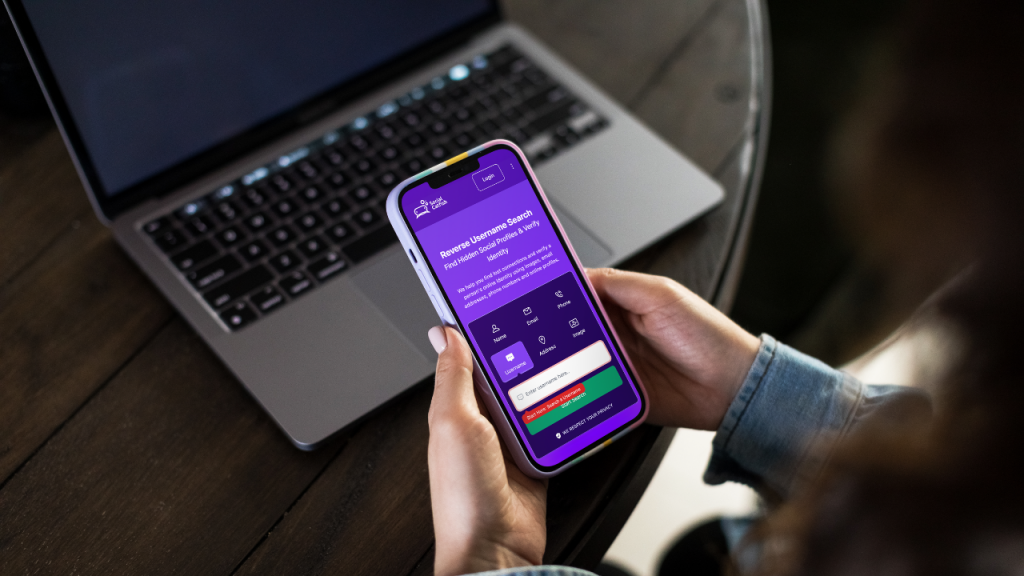
eBay’s feedback system is useful but limited. It tells you how past buyers experienced the seller, but it does not tell you who the seller actually is in the real world. For any purchase where the item value, the risk, or the circumstances warrant it, verifying the seller’s identity takes one more step.
What eBay’s profile does not show
- Whether the seller’s contact details are real
- Whether the seller is operating under multiple accounts
- Whether the seller has been reported for fraud on other platforms
- Whether the email or phone number they have used is connected to other suspicious activity
How Social Catfish verifies a seller’s identity
Social Catfish’s reverse search tools cross-reference whatever identifying information is available a username, an email address, or a phone number, against public records, social media profiles, and identity databases across 200+ platforms:
- Username search — finds every platform where the same username appears, revealing whether the seller’s identity is consistent across the internet
- Email lookup — surfaces all accounts and identity data connected to the email address the seller has used in communications
- Phone number lookup — cross-references a contact number against public records to confirm the registered identity
This is the step that matters most when a purchase involves significant money, when something about the seller’s story does not add up, or when a seller has asked you to transact outside of eBay’s protected platform.
Every search runs privately. The seller will never know a check was run.
Conclusion
Searching for a seller on eBay is straightforward once you know which tool to use. Advanced Search handles username searches. Direct URLs get you to profiles and stores in seconds. Google site search finds sellers when you only have partial information. And for purchases where eBay’s feedback score is not enough reassurance on its own, Social Catfish’s reverse search verifies who the seller actually is beyond the username and the positive feedback percentage.
Top 5 FAQs
Go to eBay’s Advanced Search at ebay.com/sch/ebayadvsearch, scroll to the Sellers section, check the Only show items from box, enter the username, and click Search. You can also go directly to ebay.com/usr/username in your browser, or type seller: username into eBay’s main search bar.
Yes. Go to Advanced Search, click Stores on the left panel, and search by store name. Store names and usernames are separate in eBay’s system. The store name is the branded name a seller has chosen for their shop, which may be different from their account username.
Try a Google site search using site:ebay.com plus the seller’s business name or a description of what they sell. If you have bought from them before, their username is in your eBay purchase history under My eBay. If you have their contact details, Social Catfish’s reverse search can cross-reference an email or phone number against eBay accounts and other platforms.
Look at their positive feedback percentage, aim for 99% or above, and read the actual text of any negative or neutral feedback rather than just the number. Check their membership since date, the volume of their listings, and whether they specialise in the type of item you are buying. Avoid sellers who ask to communicate or transact outside of eBay.
eBay’s feedback profile confirms past buyer experience, but not who the seller is in real life. Social Catfish’s reverse search tools cross-reference a seller’s username, email, or phone number against public records and social profiles to confirm whether their identity is consistent and whether they have been flagged for suspicious activity on other platforms.