
 Multiple Faces Detected



 January 28th, 2021
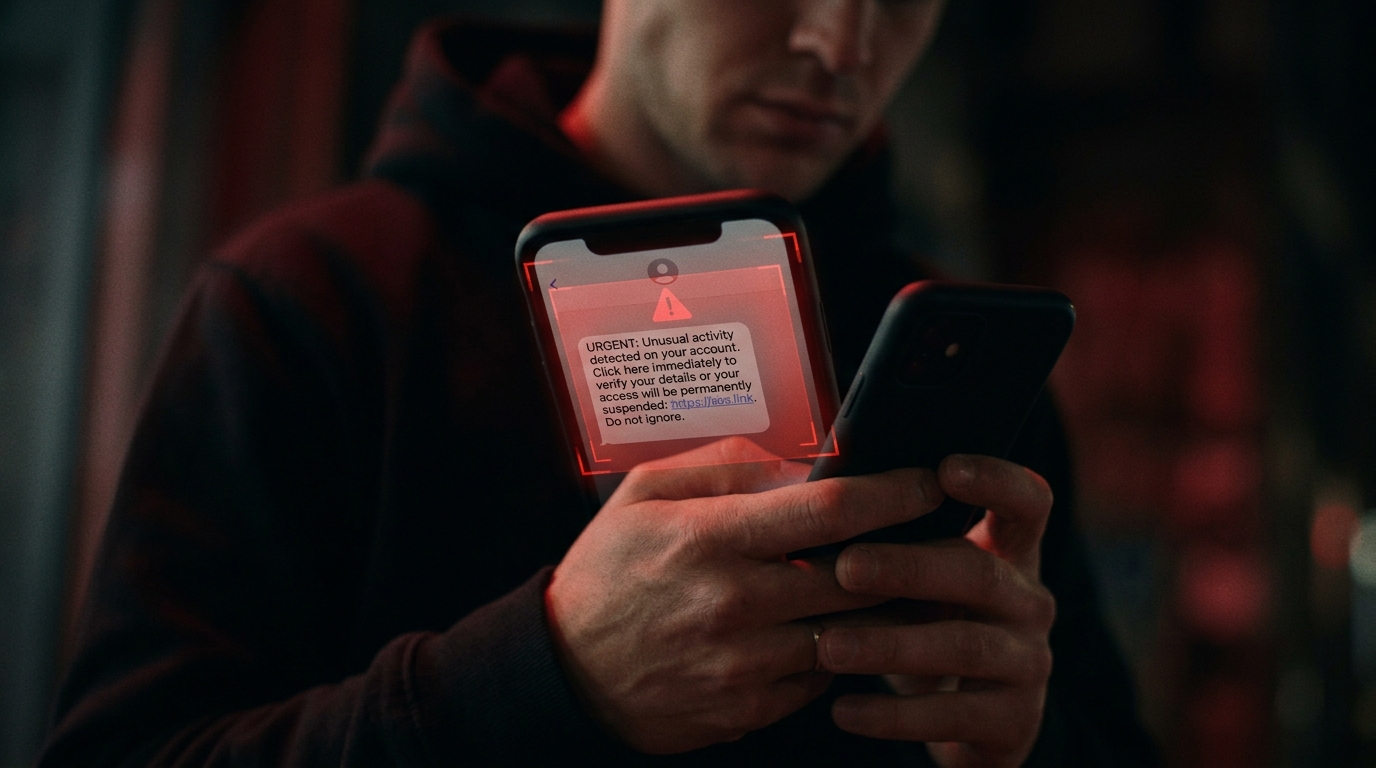
If you own a smartphone, you’ve probably received those annoying random robocalls or scam text messages and have wondered how to make them go away. Thankfully, modern-day technology has given us the solution to block phone numbers that we don’t want to contact us. While this is primarily handy for blocking scammers, it’s also handy when you have an ex who won’t stop contacting you, an ex-friend you don’t want to talk to, or telemarketers who annoy you. Because of these reasons, it is important to know how to block a phone number when you get these pesky calls.
How to Block a Phone Number on an iPhone

- You can silence unknown calls on an iPhone by going to Settings – Phone – and Silence Unknown Callers.
- You can filter unknown messages by sending them to a separate list. To do this, go to Settings – Messages – and Filter Unknown Sends.
- To block a number that called you, open the phone app and go to your recent callers. Find the number you want to block and then tap the lowercase “i” in a circle next to it. Scroll down the list of options and click “Block This Caller.”
- To block someone in your contact list, go to Settings – Phone – Blocked Contacts. Scroll to the bottom of the list and tap “Add New.” Once your Contacts list comes up, click on the person you would like to block. You can also do this by going to Settings – Messages – Blocked Contacts – Add New.
- To block someone who texted you, go to the messages between you and that person. Then, tap their phone number at the top of their screen. Click on the “Info” icon and then once again, click the “Info” icon. Then once you get to this list, click on “Block this Caller.”
- To block someone random on FaceTime, go on the FaceTime app. Then, find the last time you guys had a FaceTime conversation together. Click on the info icon by the phone number on the app. Then scroll down the list of options to “Block This Caller.”
- To block someone from your Contacts list on FaceTime, go to Settings – FaceTime – Blocked Contacts. Scroll down to the bottom of the list, click “Add New,” and select the name(s) you would like to block.
How to Block a Phone Number on an Android

*These steps might vary between different types of Android devices.
- For most Android devices, click the phone number you want to block. Then, scroll to the bottom of the list of options and choose “Block Number.” You can also click on the ellipses on the top right of the screen of the phone number you want to block and choose “Block Number.”
- On Android Lollipop, select Call Settings – Call Rejection – and Auto Reject List. Type in the number you want to block, hit search, and select this number. Click Done.
- On Marshmallow or Nougat, open your Dialer app and go to your recent call list. Find the phone number you would like to block then select Block/Report Spam. If this phone number is not spam, make sure the box is unchecked next to “Report Spam.” After, tap Block.
Social Catfish is Here to Help You!
At Social Catfish, we want to help you verify the identities of those who might seem suspicious to you. If you have their name, email address, phone number, social media username, or image, you can reverse search and see who the suspected person was that you’ve been in contact with when trying to figure out how to block a phone number.
Follow our Social Catfish blog to learn about the scams that happen to people just like you. Help to empower the public to share their stories, by sharing your own and help other victims let go of their shame.
Comment on our blog, use our search fields regularly (especially with new online connections and for your own internet exposure management), and follow us on YouTube, Facebook or Instagram.