
 Multiple Faces Detected


 October 24th, 2024
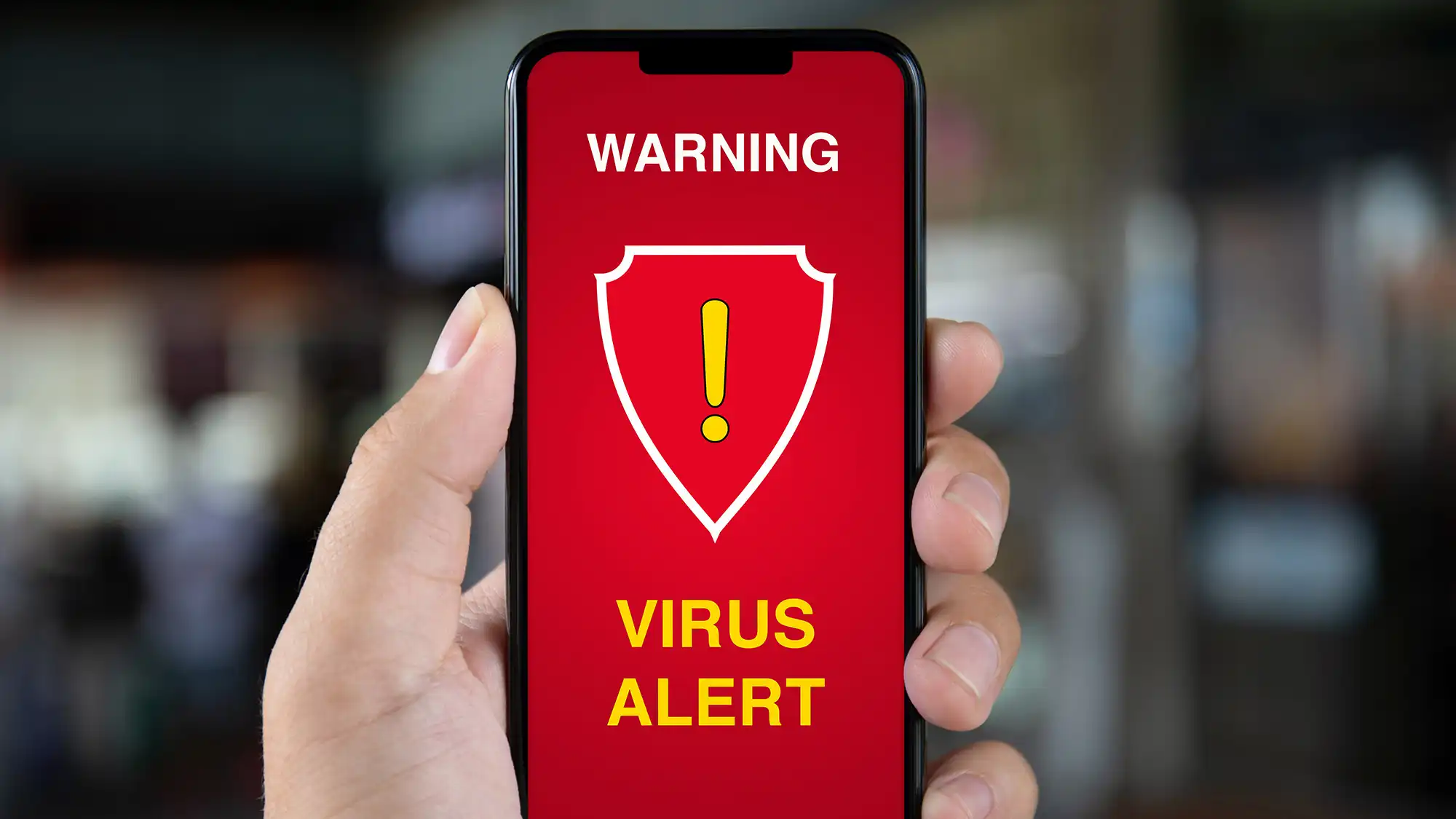
As technology continues to advance, so do the threats that come with it. One of the most common threats that iPhone users face is the presence of viruses. These malicious software can cause a range of issues, from slowing down your device to stealing personal information. If you suspect that your iPhone has been infected with a virus, don’t panic. In this blog post, we will provide you with a step-by-step guide on how to get rid of a virus on your iPhone.
Step 1: Identify the Symptoms
The first step in getting rid of a virus on your iPhone is to identify the symptoms. Some common signs of a virus include sudden battery drain, unusual pop-ups, and apps crashing frequently. If you notice any of these symptoms, it’s important to take action immediately.
Step 2: Update Your iPhone
One of the easiest ways to get rid of a virus on your iPhone is to update your device to the latest version of iOS. Apple regularly releases updates that include security patches to protect against viruses and other threats. To update your iPhone, go to Settings > General > Software Update and follow the prompts.
Step 3: Clear Your Browsing History and Data
If you suspect that the virus may have come from a website you visited, it’s important to clear your browsing history and data. This will remove any cookies or cached data that may be harboring the virus. To do this, go to Settings > Safari > Clear History and Website Data.
Step 4: Delete Suspicious Apps
If you recently downloaded a new app and started experiencing virus-like symptoms, it’s possible that the app is the source of the virus. To delete the app, press and hold the app icon until it starts shaking, then tap the “x” in the corner. You can also go to Settings > General > iPhone Storage to see a list of all your apps and delete them from there.
Step 5: Install an Antivirus App
To further protect your iPhone from viruses, consider installing an antivirus app. There are many reputable antivirus apps available on the App Store, such as Avast, Norton, and McAfee. These apps can scan your device for any viruses and remove them.
Step 6: Reset Your iPhone
If the above steps do not work, you may need to reset your iPhone to factory settings. This will erase all data and settings on your device, so make sure to back up your important information beforehand. To reset your iPhone, go to Settings > General > Reset > Erase All Content and Settings.
Step 7: Contact Apple Support
If you are still experiencing issues with your iPhone after following the above steps, it’s best to contact Apple Support for further assistance. They have a team of experts who can help you get rid of the virus and restore your device to its normal functioning.
Social Catfish
If your iPhone has been compromised by a virus and you’re concerned that your personal information has been exposed online, using Social Catfish can provide an additional layer of security. Social Catfish is an advanced tool that helps you track down and verify any suspicious activity tied to your identity, such as stolen photos, emails, or personal data being used on fraudulent websites or social media accounts. By running a reverse search through Social Catfish, you can detect any unauthorized use of your information and take action to prevent identity theft or scams. It’s an essential step in safeguarding your online presence after a virus threat.
Use the search bar below to get started.
Name Search Examples
To get more accurate results, enter the full name including at least First name, Middle name and Last name.
Email Search Examples
Phone Search Examples
Username Search Examples
Address Search Examples
Start typing the initial part of the address and select from the addresses given dropdown afterward.
We Respect Your Privacy.
In conclusion, viruses on iPhones are a common occurrence, but they can be easily dealt with by following these steps. It’s important to regularly update your device and be cautious when downloading apps or visiting websites. By taking these precautions, you can protect your iPhone from viruses and keep your personal information safe.