
 Multiple Faces Detected


 July 28th, 2026
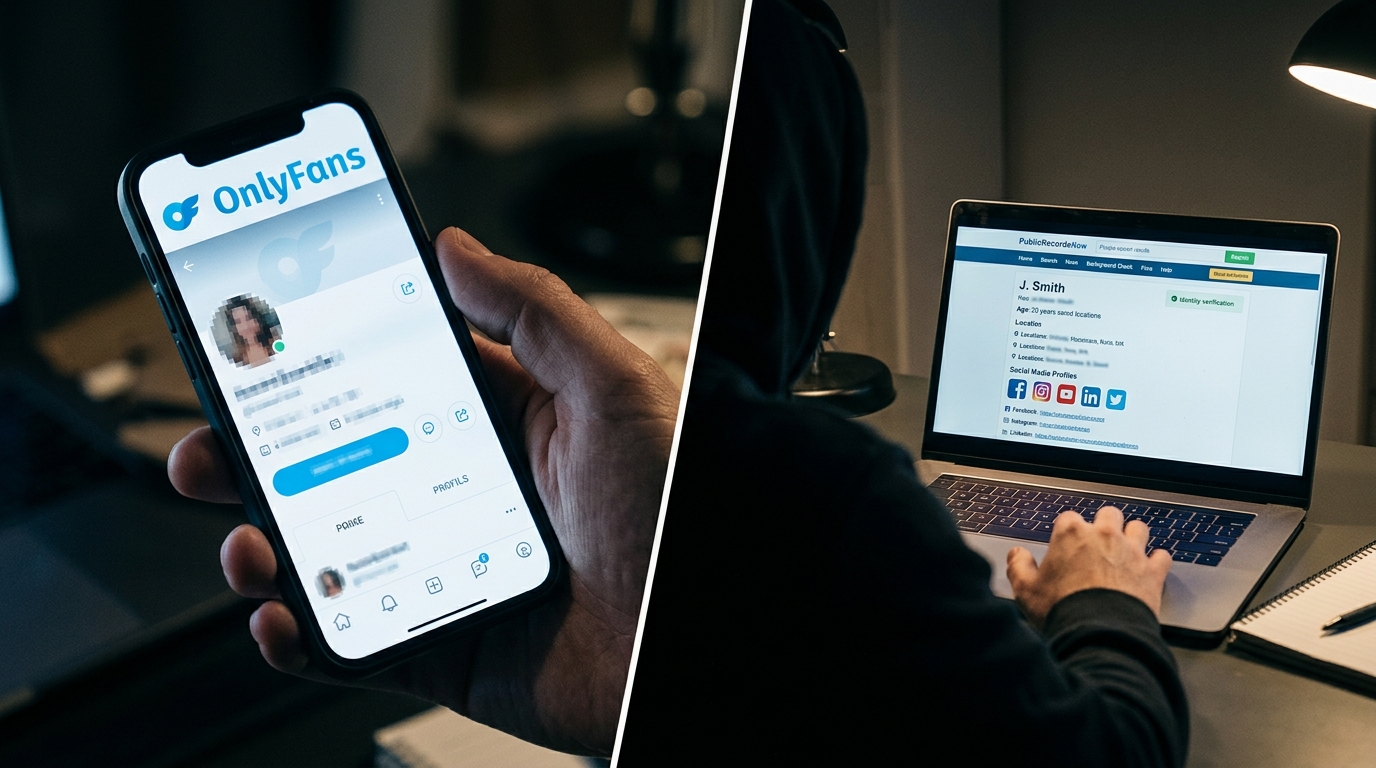
An OnlyFans image search is not about browsing content; it is about verification. There are three common situations where searching OnlyFans by image becomes necessary: you want to check whether someone you met online has an OnlyFans account using photos they sent you, you want to verify whether an OnlyFans profile is using stolen photos rather than genuine content, or you received photos from someone and want to confirm they are who they claim to be before trusting them further.
All three are legitimate identity verification needs, and reverse image search is the most direct tool for addressing them. This guide covers every method for OnlyFans reverse image search, the free tools that work, what to do when image search comes up empty, and how Social Catfish’s AI-powered facial recognition searches across OnlyFans and other platforms that standard search engines cannot reach.
Name Search Examples
To get more accurate results, enter the full name including at least First name, Middle name and Last name.
Email Search Examples
Phone Search Examples
Username Search Examples
Address Search Examples
Start typing the initial part of the address and select from the addresses given dropdown afterward.
We Respect Your Privacy.
What Is an OnlyFans Image Search and Why Would You Need One?

An OnlyFans image search uses a photo as the starting point to find where that image or that face appears across the internet, including on OnlyFans profiles. Rather than searching by username or name, you upload a photo, and the search engine finds matching or visually similar content.
The most common reasons people run an OnlyFans image search fall into three categories.
Verifying whether someone has an OnlyFans. If someone you met on a dating app or social media sent you photos and you want to check whether those photos are being used on an OnlyFans account, either because they told you they have one or because you suspect they might- a reverse image search finds OnlyFans profiles using those photos.
Checking for stolen photos on fake OnlyFans profiles. OnlyFans has a significant fake profile problem, with accounts that use stolen photos of real people to attract subscribers. If you subscribed to an account and suspect the photos are not genuine, a reverse image search confirms whether those photos belong to someone else entirely.
Catfishing and identity verification. Someone claiming to be an OnlyFans creator may be using photos stolen from another creator. A reverse image search on their profile photos confirms whether the photos are original or sourced from someone else’s account or social media.
OnlyFans Reverse Image Search: How to Search by Image
An OnlyFans reverse image search works the same way as any reverse image search. You provide a photo, and the search engine finds matching images and their source pages. The difference for OnlyFans specifically is that most standard search engines do not index OnlyFans content, which limits what free tools can find and makes specialised tools necessary for comprehensive results.
Getting the image to search: To run a reverse image search on OnlyFans, you need to save the photo first. On desktop, right-click any OnlyFans profile photo or preview image and select “Save image as.” On mobile, screenshot the image and crop it tightly to the face or the specific image you want to search. Cropping to just the face significantly improves facial recognition accuracy.
What the search is looking for: A reverse image search for the same image file finds identical or near-identical copies of that photo posted elsewhere, other OnlyFans profiles, social media accounts, stock photo sites, or anywhere the image has been publicly indexed. A facial recognition search goes further; it finds the same face across completely different photos, which is more relevant when you want to identify the person behind a profile rather than just trace where a specific image was posted.
Reverse Image Search for OnlyFans: Free Tools That Work
These free tools are the starting point for any reverse image search for onlyfans verification. Each has different strengths and coverage.
Google Lens: Go to images.google.com, click the camera icon, and upload your saved photo. Google Lens analyses the image and returns visually similar images and pages where the same image has appeared. For OnlyFans specifically, Google’s coverage is limited because OnlyFans blocks search engine crawlers, but Google often surfaces the same photos on the creator’s linked social media accounts, which is useful for identity verification.
On iPhone or Android, open the Google app and tap the Lens icon in the search bar. Select the saved image from your camera roll. The results work identically to desktop.
Bing Visual Search: Go to bing.com/images and click the camera icon. Bing has different indexing coverage from Google and sometimes surfaces results that Google misses. Running the same image through both Google and Bing gives broader coverage than either alone.
Yandex Images: Go to yandex.com/images and upload the photo. Yandex has strong facial recognition capabilities and is particularly effective for photos that originate from Eastern European platforms or social networks. It sometimes returns results that Google and TinEye both miss.
Combining free tools: Running the same image through Google Lens, TinEye, and Bing covers most of the publicly indexed web. If all three return no results, the photo is either from a platform none of them index, which includes most of OnlyFans, or the image has been modified enough to defeat file-matching. This is when Social Catfish’s facial recognition becomes the necessary next step.
OnlyFans Face Search: Finding an Account by Face Alone
An OnlyFans face search, sometimes searched as an OnlyFans face finder, is different from a standard reverse image search. Reverse image search matches the exact photo file: the same picture, pixel for pixel, wherever else it’s been posted. Face search matches the person, even in a completely different photo than the one you have. That distinction matters if the picture you’re starting from was cropped, filtered, screenshotted, or simply isn’t the same image the OnlyFans account itself uses.
Why This Trips Up Free Tools
Google Lens, Bing Visual Search, and TinEye all work by comparing image files. They’re strong at finding where that exact photo has been posted, but they don’t identify a face independent of the picture it appears in. If someone’s OnlyFans photos are different shots of the same person, file-matching tools can miss the connection entirely, even when the account is real and active.
Social Catfish’s Face Search
- Uses AI facial recognition to identify the person in a photo, not just the photo itself — so it can connect two different pictures of the same face across separate accounts
- Searches across OnlyFans, other adult platforms, dating apps, and social media simultaneously, rather than one index at a time
- Built specifically for cases where you have a photo of someone but don’t know if — or where — they have an OnlyFans, since it doesn’t depend on that exact image already being indexed anywhere
- Returns identity information tied to the face, not just a list of pages where a file appears
OnlyFans Search by Image: Step-by-Step
Here is the complete step-by-step process for an OnlyFans search by image from start to finish.
Step 1 — Save the photo. Save or screenshot the profile photo or preview image you want to search. On a desktop, right-click and save. On mobile, screenshot and crop. Save the highest resolution version available.
Step 2 — Crop tightly to the face. Open the saved image in any photo editor or your phone’s crop tool. Crop the image so the face fills most of the frame with minimal background. This step alone significantly improves results across every reverse image search tool.
Step 3 — Run Google Lens first. Upload to images.google.com or use the Google app. Note any results, particularly any social media profiles that appear using the same photo.
Step 4 — Run TinEye. Upload to tineye.com. Note the earliest date the image appears in results. If the image first appeared years before the OnlyFans account was created, the photos are likely stolen.
Step 5 — Run Bing Visual Search. Upload to bing.com/images for supplementary coverage.
Step 6 — If free tools return no results, run Social Catfish. Upload the photo to Social Catfish’s reverse image search at socialcatfish.com. The AI facial recognition searches across platforms that Google, TinEye, and Bing cannot index, including dating apps, adult platforms, and social media with restricted crawler access. This is the step that finds results when standard search engines come up empty.
How to Find Someone on OnlyFans
How to find someone on OnlyFans when you have more than just a photo, other identifiers like a username, name, phone number, or email, extends the search beyond image-based lookup.
By username: Go directly to onlyfans.com/username if you know or can guess their handle. Most creators use the same username across their social media and OnlyFans. If you know their Instagram or Twitter handle, try it as an OnlyFans URL directly.
By name: OnlyFans does not support name-based search natively. Search their full name in Google alongside “OnlyFans” if they promote their account publicly under their real name, and Google surfaces the connection. Also, check their linked social media bios for an OnlyFans link.
By phone number or email: Social Catfish’s reverse phone and email search tools cross-reference contact details against platform registrations, finding any OnlyFans accounts registered to that number or email address. This is the most direct method when you have contact details but no username.
By photo: Follow the step-by-step process above. Social Catfish’s reverse image search covers OnlyFans and other adult platforms that standard search engines cannot index.
OnlyFans Location Search: Find Accounts by Location
OnlyFans location search is one of the most requested features and one of the most unreliable, for important reasons worth understanding before you use it.
Every location displayed on an OnlyFans profile is self-reported; creators type in whatever city or country they choose, with no GPS tracking or address verification. This means that OnlyFans search by location through third-party tools like OnlyFinder, JuicySearch, and OnlySearch returns profiles based entirely on what creators claimed, not where they actually are.
Common reasons creators misrepresent their location include attracting local subscribers willing to pay more, appearing to be in high-income markets, and protecting their real location for privacy and safety reasons.
What location search is useful for: Browsing publicly listed creator profiles in a general region, where the exact location is not critical. Identifying creators who promote themselves as being in a specific area as a starting point, not a confirmation.
What location search cannot do: Confirm that a creator is genuinely located where they claim. Verify a creator’s identity. Find creators who have not listed a location or have set their profile to private.
For genuine location verification: Enter the creator’s username, phone number, or email into Social Catfish. The search cross-references their contact details against public records and social media, finding real-world location data linked to their identity rather than relying on what they typed into their OnlyFans profile settings.
Only Fans Finder: What to Do When Image Search Isn’t Enough

An OnlyFans finder search that relies purely on image matching has specific limitations. Modified photos, AI-generated faces, and private profiles that block all search engine indexing are the most common reasons image search alone comes up empty.
When standard image search has not produced useful results, these approaches give you more complete coverage.
Social Catfish reverse image search with facial recognition: Unlike Google and TinEye, which match image files, Social Catfish’s search uses AI facial recognition, analysing the face itself and finding it across different photos on platforms that block standard search engines. The same face in a completely different photo on a private social media account or an adult platform that blocks crawlers surfaces through facial recognition when file-matching returns nothing.
Upload the photo to Social Catfish at socialcatfish.com. The search covers dating apps, adult platforms, social media with restricted indexing, and public records simultaneously. If the person has any online presence with that face, the search finds it.
Cross-reference with username and name search: If the image search surfaces any name or username, enter it into Social Catfish’s username search. This finds every platform where that handle appears, confirming the full online identity behind the OnlyFans account.
Reverse phone or email search: If the creator shared contact details outside of OnlyFans through a linked social media, a personal website, or direct communication, enter those details into Social Catfish’s reverse phone or email search. This returns the full identity behind the contact details, regardless of what photos they use on any platform.
FAQ
Yes. Save the profile photo and upload it to Google Lens, TinEye, or Bing Visual Search for free file-matching results. For facial recognition that covers platforms Google cannot index, including OnlyFans and other adult platforms, use Social Catfish’s reverse image search.
OnlyFans blocks Google’s search engine crawler, which means most OnlyFans content is not indexed by Google. A Google image search can only find the same photo on pages Google has indexed, which excludes most of OnlyFans itself. Social Catfish’s reverse image search is specifically designed for this scenario.
Upload their profile photo to TinEye it shows the earliest date the image appeared online. If TinEye shows the photo appearing years before the OnlyFans account was created, or under a different name on another platform, the photos are likely stolen. Social Catfish confirms the original identity behind the photos.
Yes. Save the photo, crop it tightly to the face, and run it through Social Catfish’s reverse image search. The facial recognition searches across OnlyFans and other platforms, finding any accounts using that face, including OnlyFans profiles linked to that identity.
No. OnlyFans location data is entirely self-reported with no verification. Third-party location search tools display whatever the creator chose to enter, not their actual location. For genuine location verification, cross-reference the creator’s contact details through Social Catfish against real public records.
Conclusion
An OnlyFans image search is a verification tool for confirming that a profile’s photos are genuine, checking whether someone you met online has an OnlyFans account, or identifying stolen photos being used on fake profiles. The free tools Google Lens, TinEye, Bing, and Yandex cover publicly indexed content and are the right starting point for any search.
When free tools come up empty, which is common given OnlyFans’ restrictions on search engine indexing, Social Catfish’s AI facial recognition searches the platforms and databases that standard tools cannot reach, finding the same face across different photos on adult platforms, social media, and dating apps simultaneously. That is the search that produces results when everything else has already been tried.
Name Search Examples
To get more accurate results, enter the full name including at least First name, Middle name and Last name.
Email Search Examples
Phone Search Examples
Username Search Examples
Address Search Examples
Start typing the initial part of the address and select from the addresses given dropdown afterward.
We Respect Your Privacy.